.png)

Learning Center


Multiple Molecules Actions
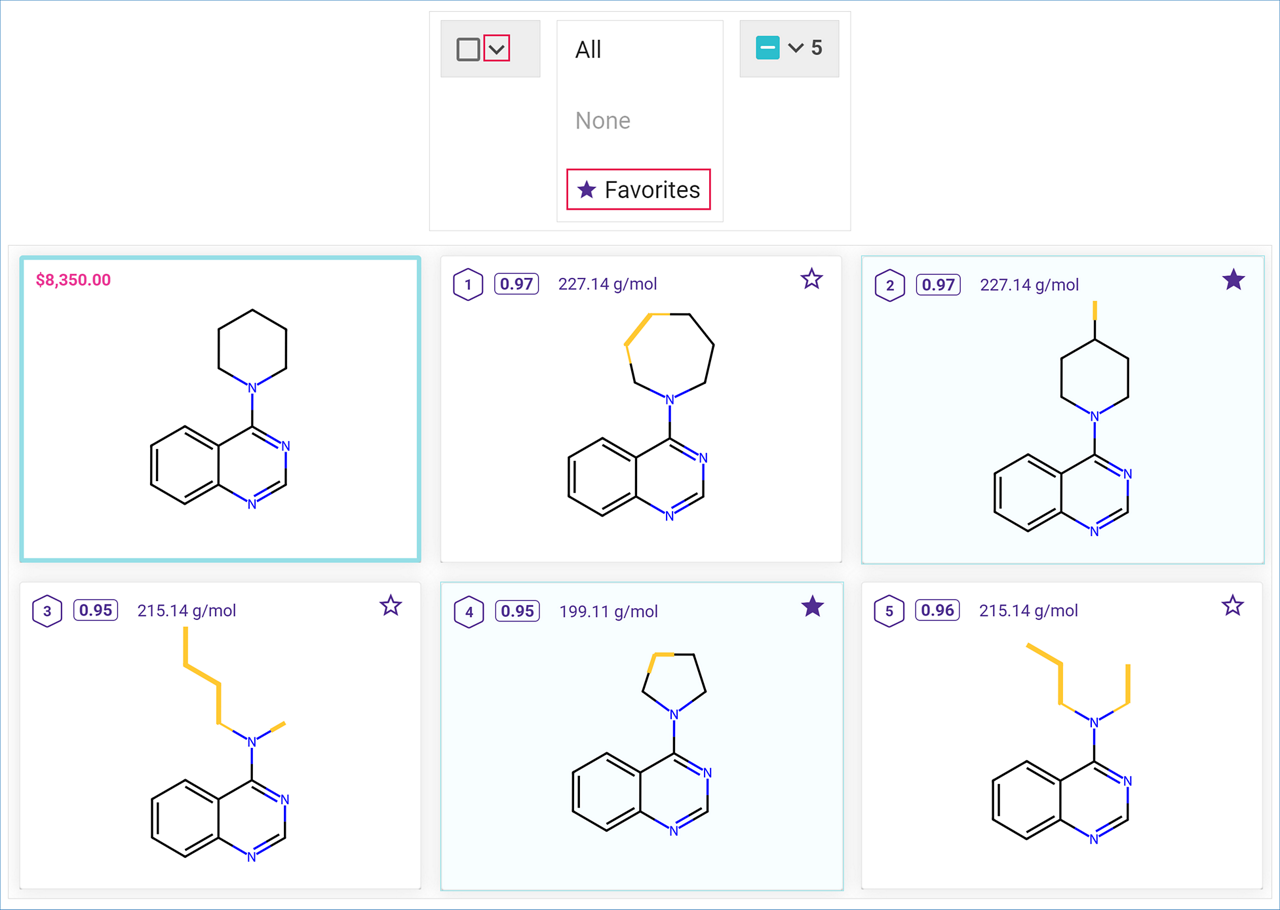
You can also apply the Molecule Actions to multiple molecules at once. Click on the selection checkbox to select or deselect all the target molecules. Click on the arrow next to it to open the Selection menu, where you can choose to select all target molecules, none, or only Favorites. Selected tiles will be highlighted in blue in the list.
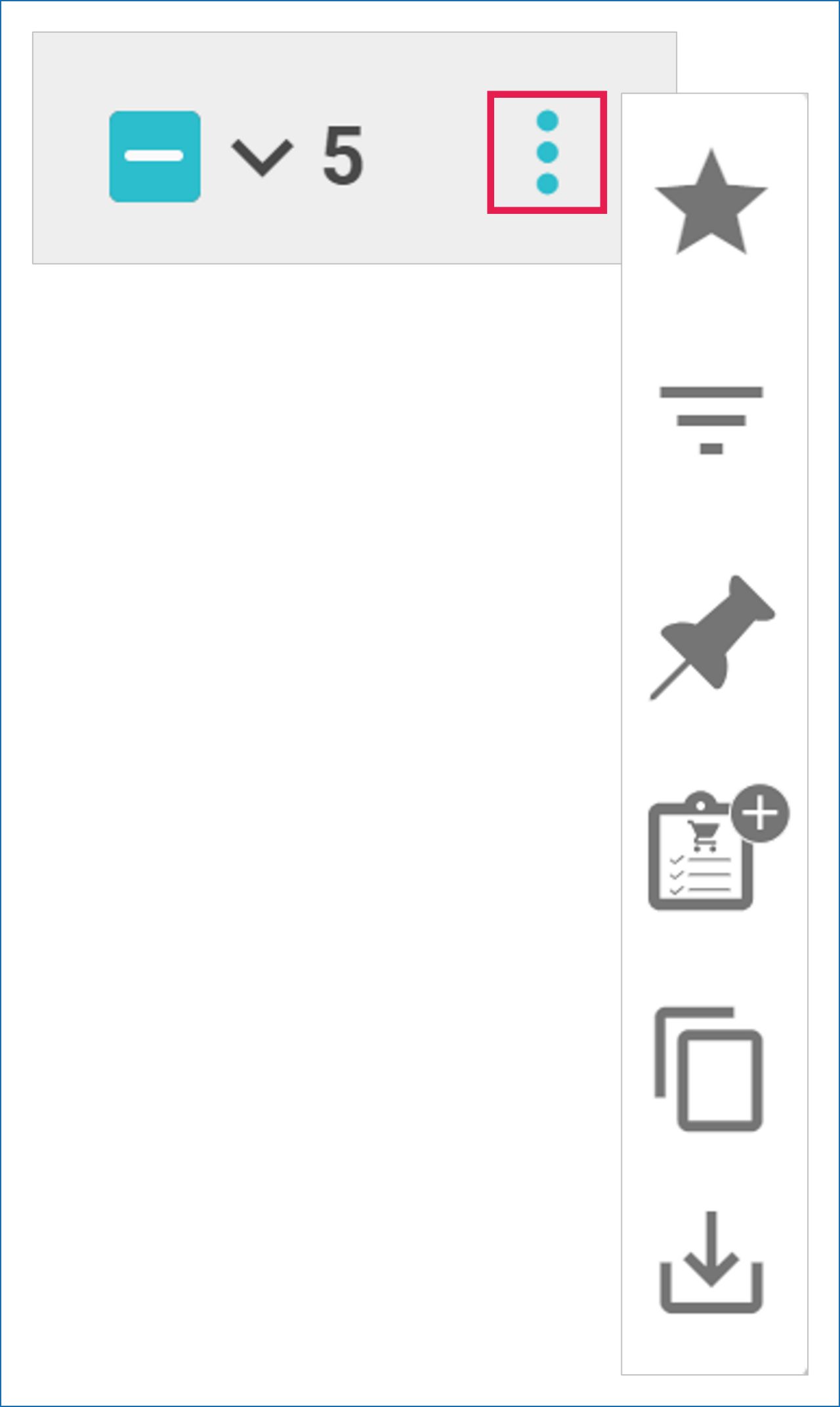
Click on the three-dot menu in the upper right corner of the list to see the available options.
Favorite Selected Molecules
Click the ‘Favorite’ icon to include the selected molecules in your ‘Favorites’ list.
Filter Selected Molecules
Click the ‘Filter’ icon to open a menu that allows you to filter the selected molecule out of the results (exclude) or view the selected molecule only (limit to).
Add Selected Molecules to Clipboard
Click on the ‘Clipboard’ icon to send the selected molecules to the clipboard in the left panel. (see “Clipboard” for more details).
>> Clipboard
View Pricing Details and Add to Shopping List
For commercially available compounds, click the 'Shop now' icon to view the catalog price and availability for your organization, and to add the compounds to your Shopping List. (See “Shopping List” in the Analyses Dashboard User Guide to learn how to set up and use your Shopping List for selecting commercial compounds you would like to buy).
>> Shopping List
Copy Selected Molecules SMILES
Click the ‘Copy’ icon to copy the structure of the selected molecule as SMILES strings to your computer’s clipboard. You can paste SMILES into any molecule editor.
Export Selected Molecules
Click the 'Download' icon to open a menu that allows you to export your selected molecules in various formats. (See “Export Library” for more details).
>> Export Library
