.png)

Learning Center


2. Registered Users Table
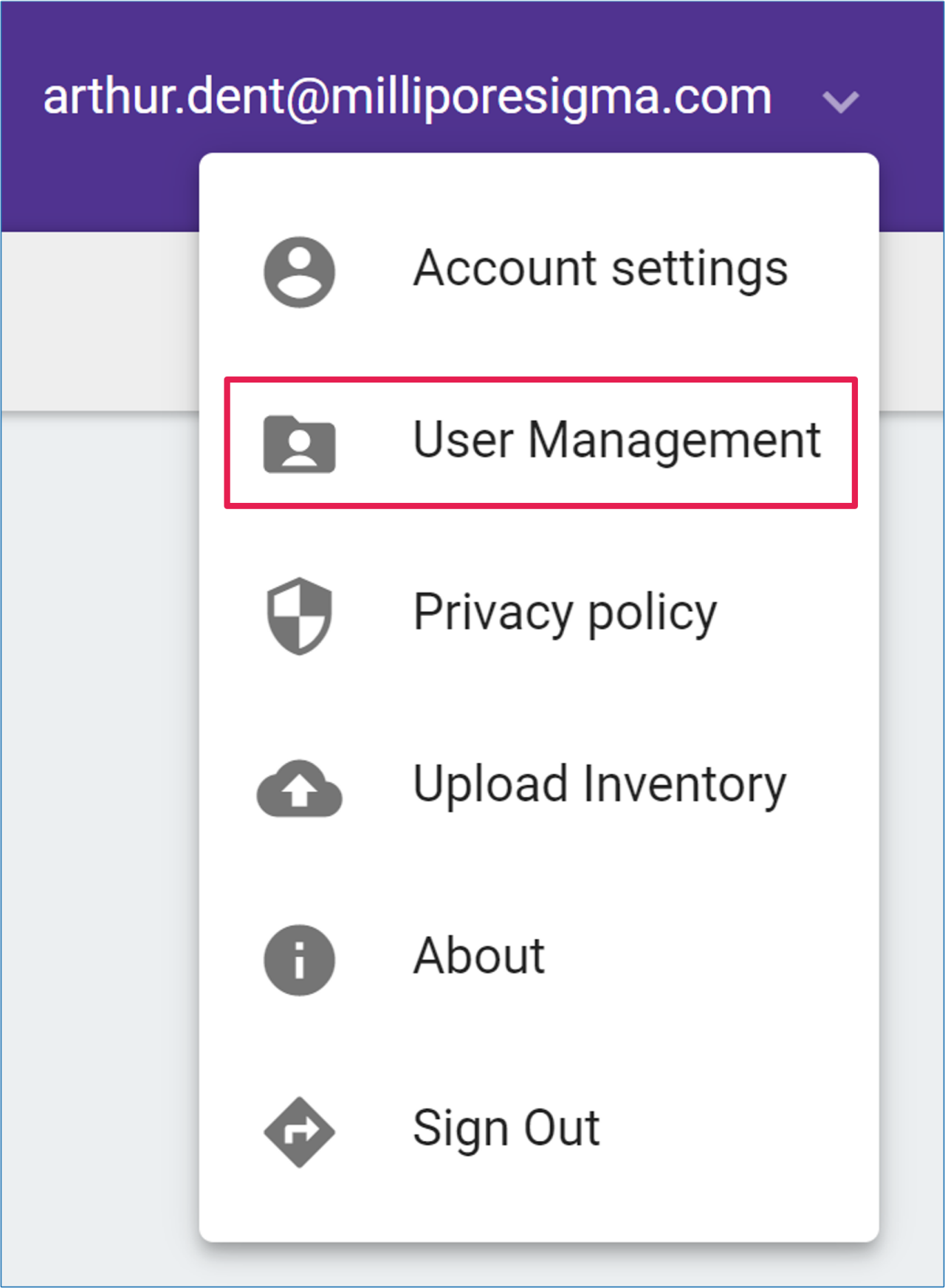
Click on your username to open your account menu, and click on ‘User Management’.
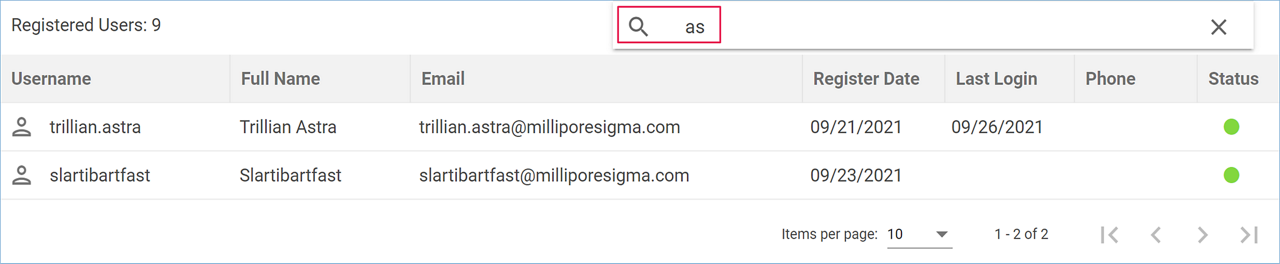
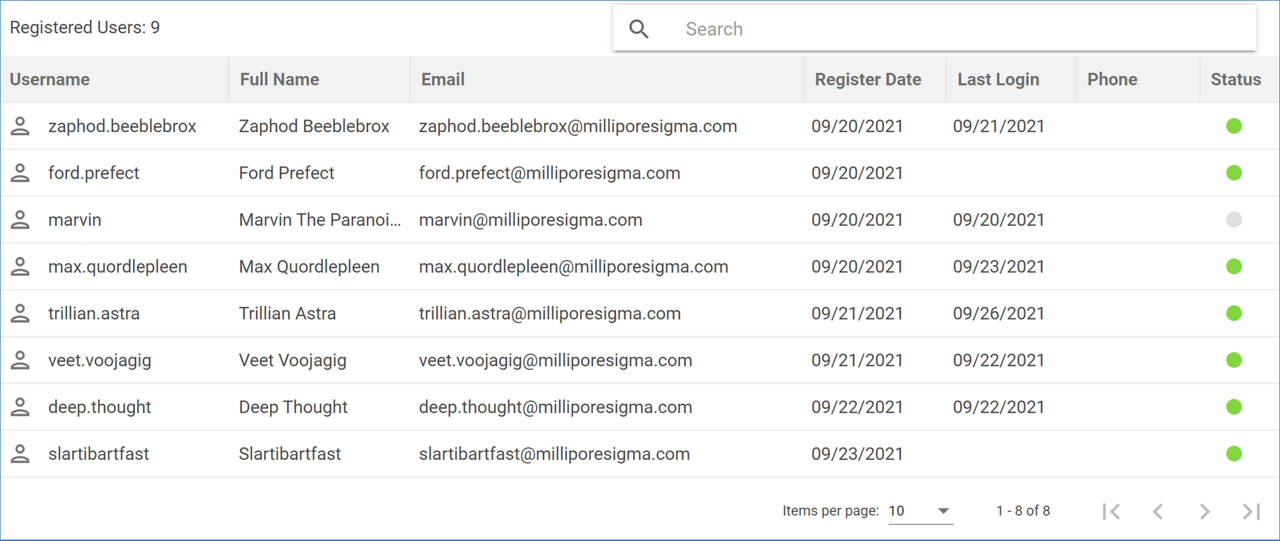
The User Management page contains a table with all the registered users of your organization. The username, full name, email address, and phone number (if submitted) are listed for each user, as well as their registration date, and the date they last logged into the application. Active users are indicated with a green dot in the status column, whereas a grey dot is displayed for inactive users.
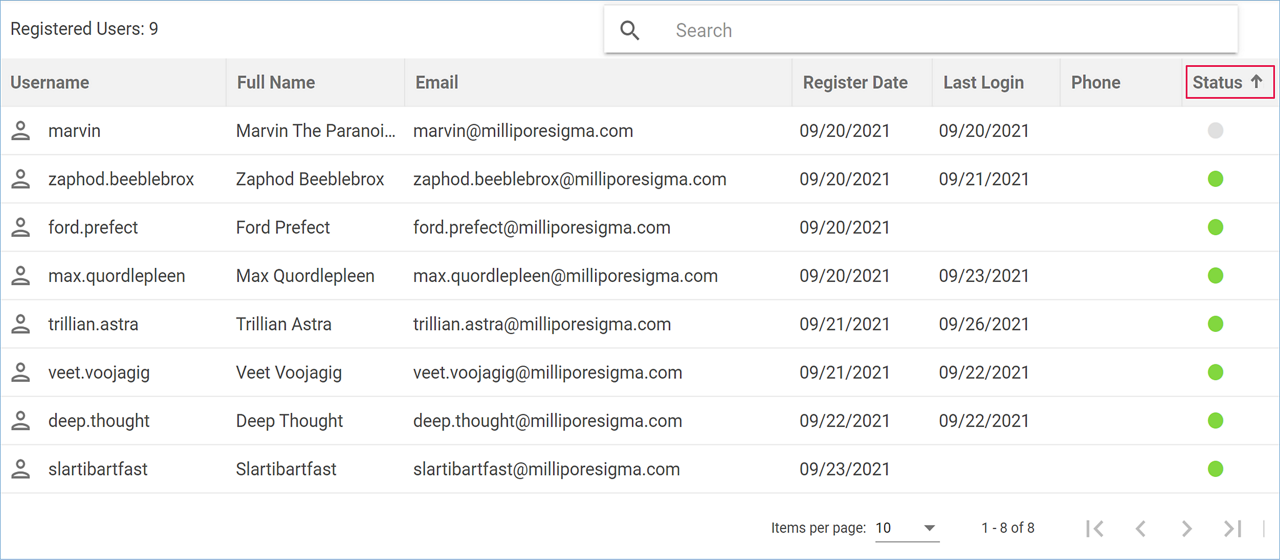
You can sort this list by any of its fields. Click on the header of the column containing the data you wish to sort by, and the list will be sorted in ascending alphanumerical order of the selected data, or in ascending dates, if you choose one of the columns listing them. Click a second time on the same header to change the sorting order to descending, and a third time to cancel sorting.
An upward arrow will be displayed next the header of the column being sorted when the data is sorted in ascending order, and a downward arrow when the data is sorted in descending order.
You can also sort by Status. Inactive users will be displayed first when ascending order is selected.
The text box above the table allows you to search for a specific user. Start typing part of their name, username, or email address in the text box, and matching results will be displayed in the table as you type.