.png)

Learning Center


Transfer Elements to a Whiteboard
If you have previously sent elements to the selected Whiteboard, they will appear in the left panel.
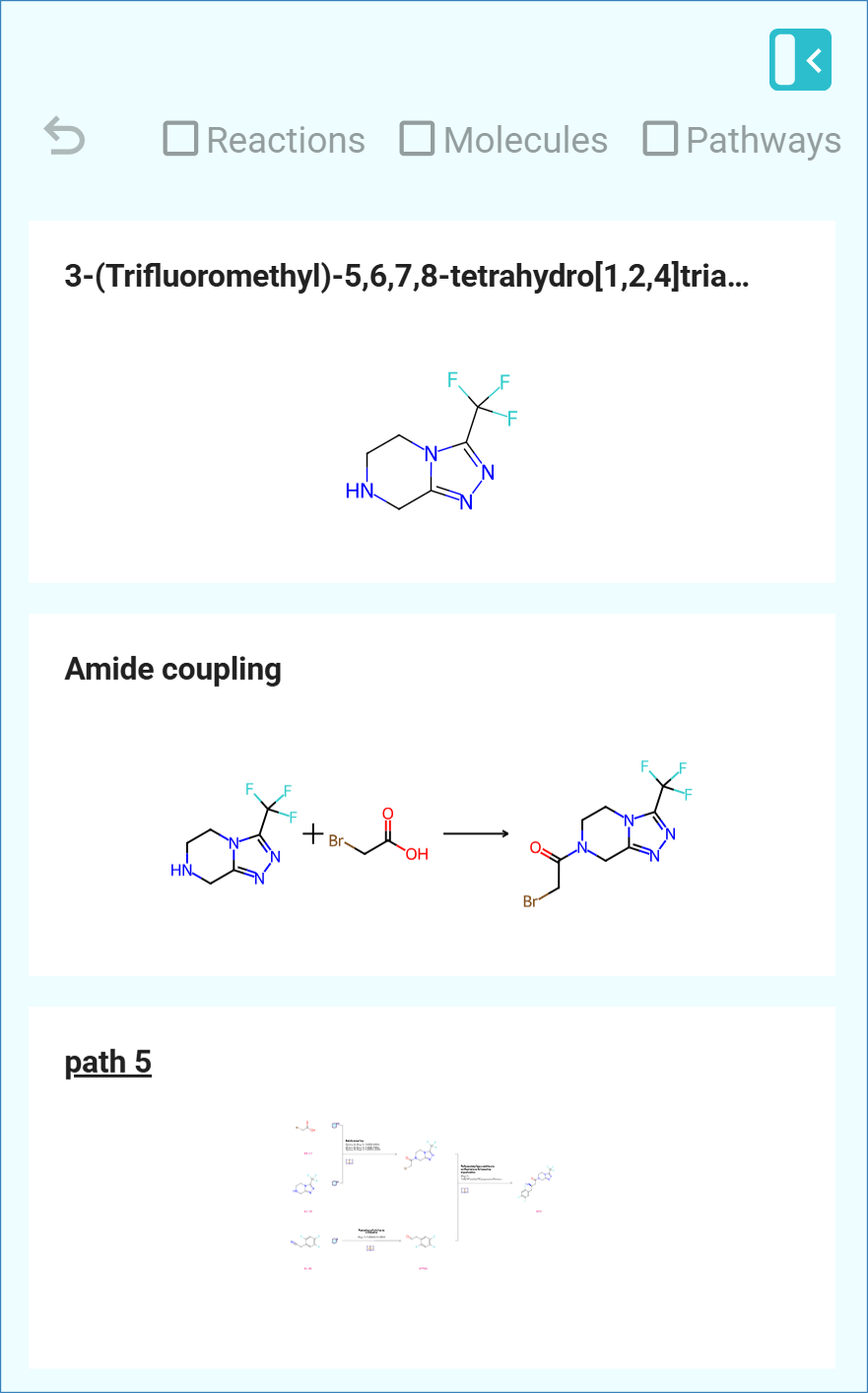
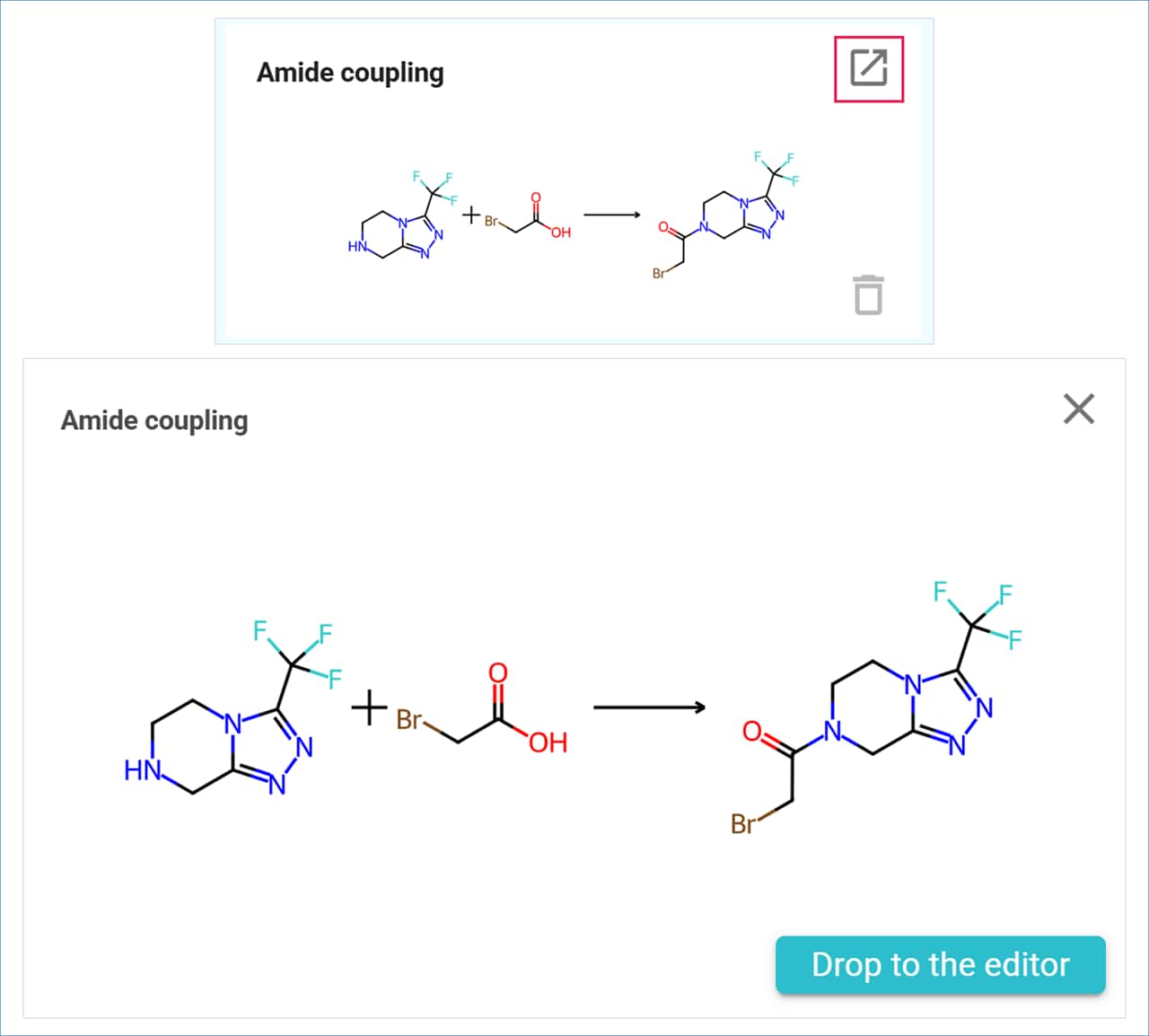
To add an element to the Whiteboard:
- Drag and drop the element from the left panel onto the Whiteboard.
- Alternatively, click on the Expanded View icon to enlarge the element, then select ‘Drop to Editor’ to place it on the Whiteboard.
Once transferred, the elements will appear highlighted in green on the Whiteboard, indicating they are selected. To move an element, hover over it until a four-sided arrow cursor appears, then drag the element to your desired position on the board.
You can continue adding elements or create new ones by drawing molecules, adding text, or inserting images using the tools available in the Molecule Editor. Use the Molecule Editor Selection tools to move elements and arrange them as needed.
When you finish editing your Whiteboard, click on the Save icon at the top of the Molecule Editor to save your changes. The Whiteboard will also be automatically saved when you close it.