.png)

Learning Center


Whiteboard Tiles
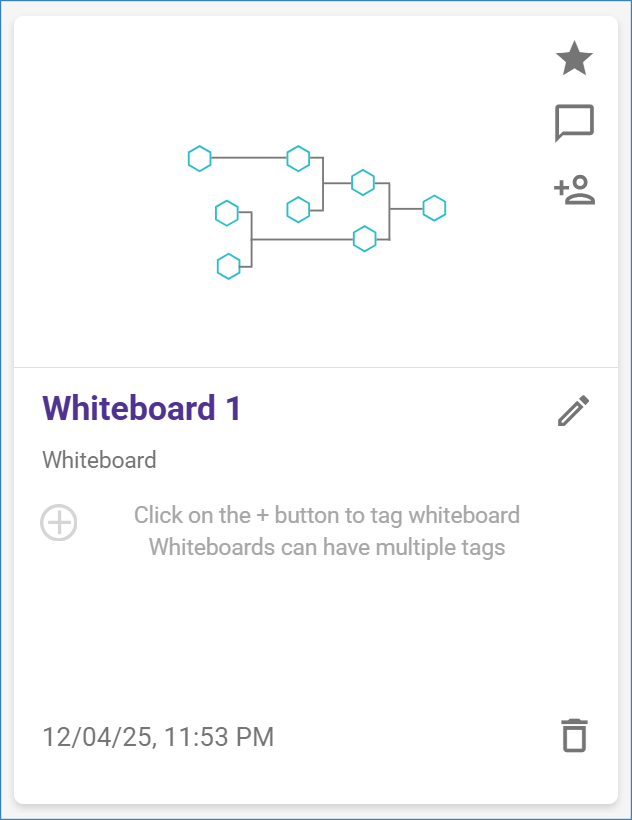
Each whiteboard is represented by a tile displaying the whiteboard name, creation date, and tags. Click on the tile to open the corresponding whiteboard.
Whiteboard Tile Actions
Each whiteboard tile displays a series of icon on its right side. Hover over any icon to see a description. Starting from the upper right, and going downward, an explanation of each whiteboard action is described below.
Favorite this Whiteboard
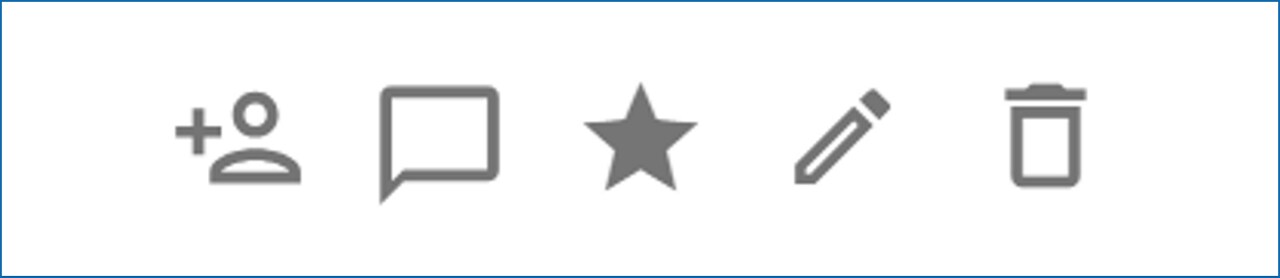
Click the ‘Favorite’ icon to add the Whiteboard to your Favorites list for quick access.
Comment
Click the ‘Comment’ icon to add a comment to your Whiteboard. Comments are visible to collaborators with whom the Whiteboard is shared. The number of comments appears next to the icon, which is highlighted in blue if there are unread comments.
Share Whiteboard *
Click the ‘Share’ icon to share your Whiteboard with collaborators (refer to the “Share Whiteboards” section for detailed instructions). Once shared, the number of collaborators is displayed next to the icon.
* This feature is only available in SYNTHIA™ Entreprise edtion.
Edit Whiteboard Name
Click the ‘Edit’ icon to rename your Whiteboard. Enter the new name in the textbox, then press ‘Enter’ or click the ‘Save’ icon to confirm the change.
Delete Whiteboard
Click the ‘Delete’ icon and confirm to permanently delete the Whiteboard.
