.png)

Learning Center


Filter and Search Whiteboards
Filters, tags, and the search bar allow you to efficiently retrieve and manage your Whiteboards.
Filters
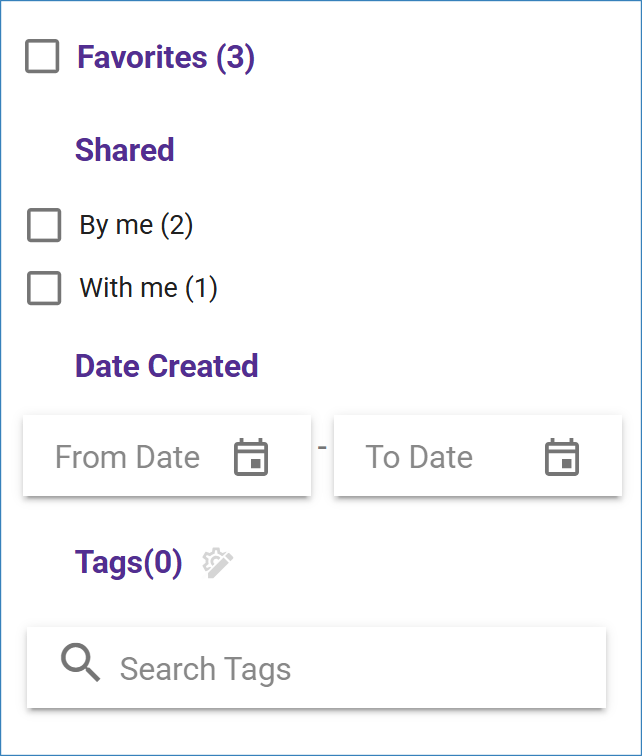
Filters help you organize and sort through your Whiteboards. On the left side of the dashboard, you will find a panel with filters and tags. A series of filters is located at the top of this panel, with the number of matching Whiteboards displayed in parentheses next to each category. To view all your Whiteboards and remove any applied filters or tags, click on ‘Reset Filters’ at the bottom of the panel.
Favorites
Check the ‘Favorites’ checkbox to see only Whiteboards saved as favorites by clicking the ‘Star’ icon on the Whiteboard tile.
Shared
This feature is only available in SYNTHIA™ Enterprise edition.
To check which Whiteboards you shared with teammates, select the ‘By me’ checkbox. Recipients can see Whiteboards shared with them by selecting the ‘With Me’ checkbox.
Date Created
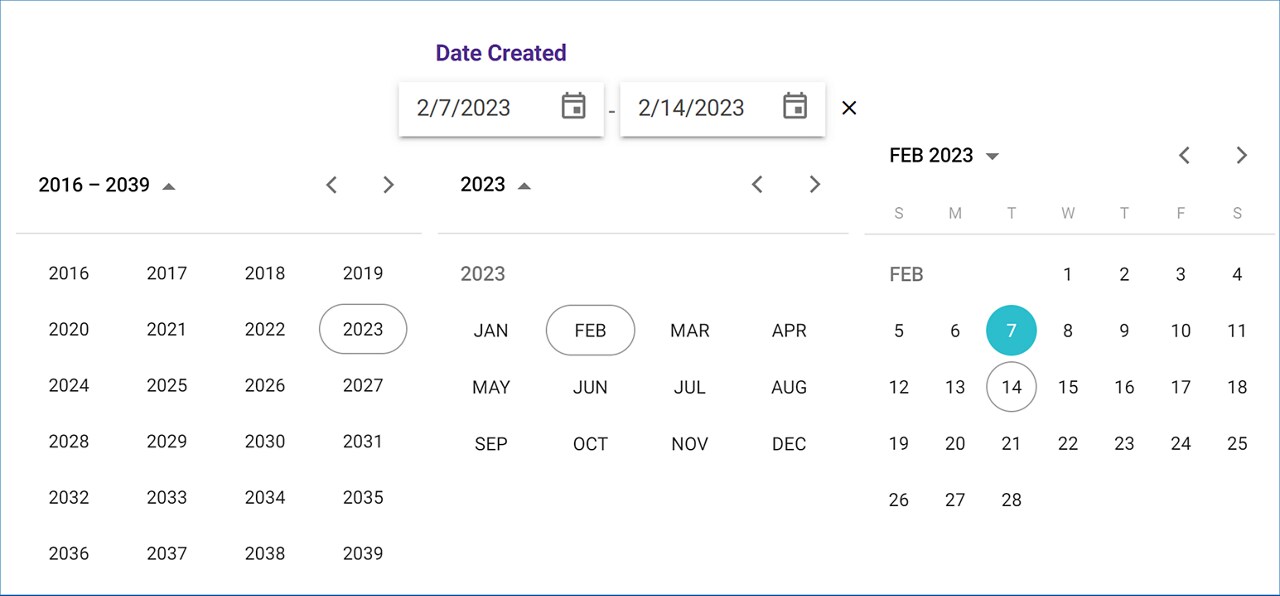
Enter date limits in the textboxes to filter your Whiteboards by creation dates. You can click on the ‘Calendar’ icon to easily select the lower and/or upper date limit.
Search Whiteboards
The Whiteboard search bar is located in the top-right corner of the dashboard header. To find a specific Whiteboard, type keywords from its name into the search bar and press ‘Enter’ to display the results.

