.png)

Learning Center


Add Elements to a Whiteboard
In addition to drawing molecules, you can directly add molecules, reactions, or pathways from analysis results to a Whiteboard.
Add a Pathway
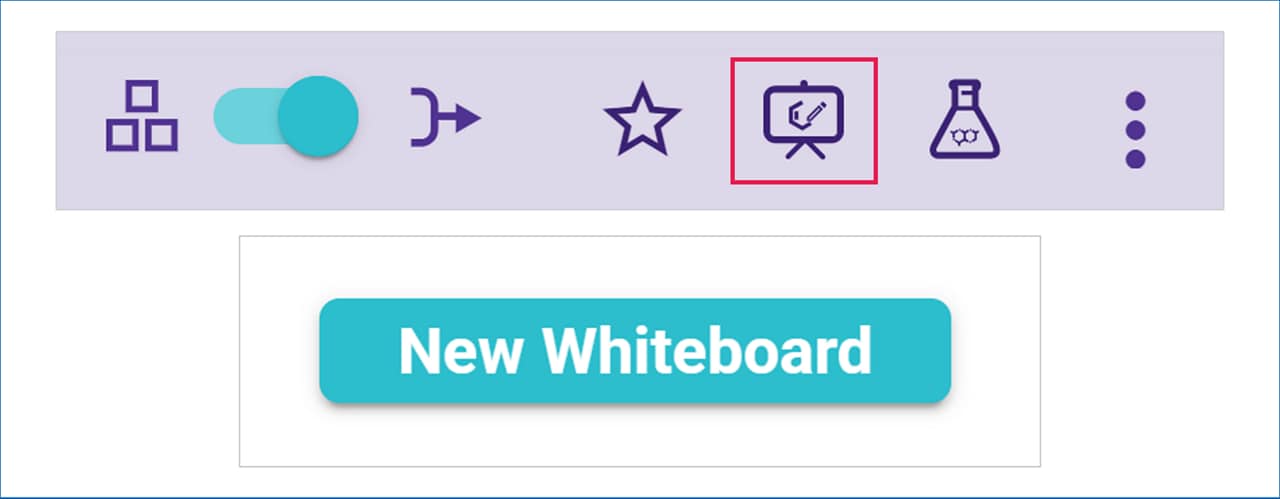
To add an entire pathway, open an Automatic Retrosynthesis Analysis or a Shared Pathway Library Analysis. From Pathway View or Expanded Pathway View, click on the Whiteboard icon.
Add a Reaction
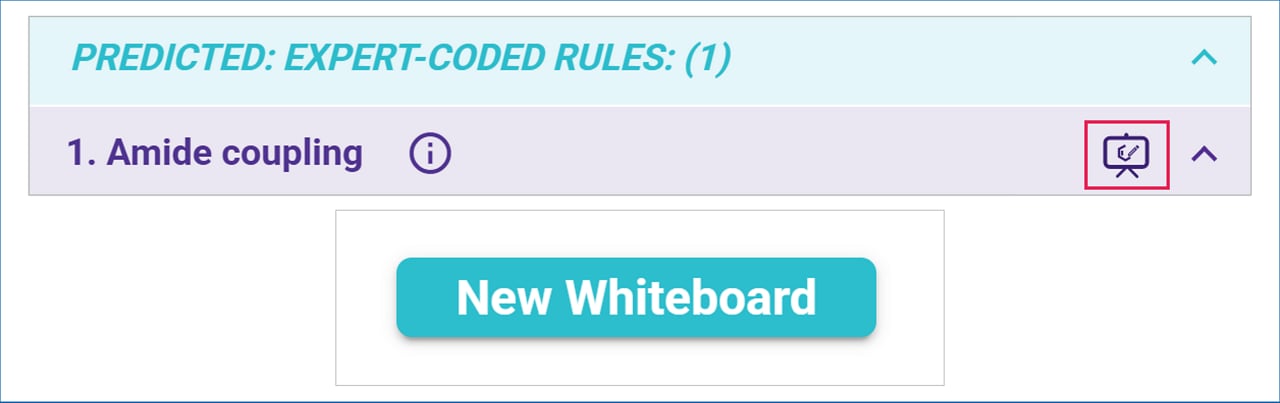
To add a reaction, open a Reaction Card in any type of analysis. In the bottom section of the Reaction Card, click on the Whiteboard icon next to the desired reaction conditions (if multiple options are available).
Add a Molecule
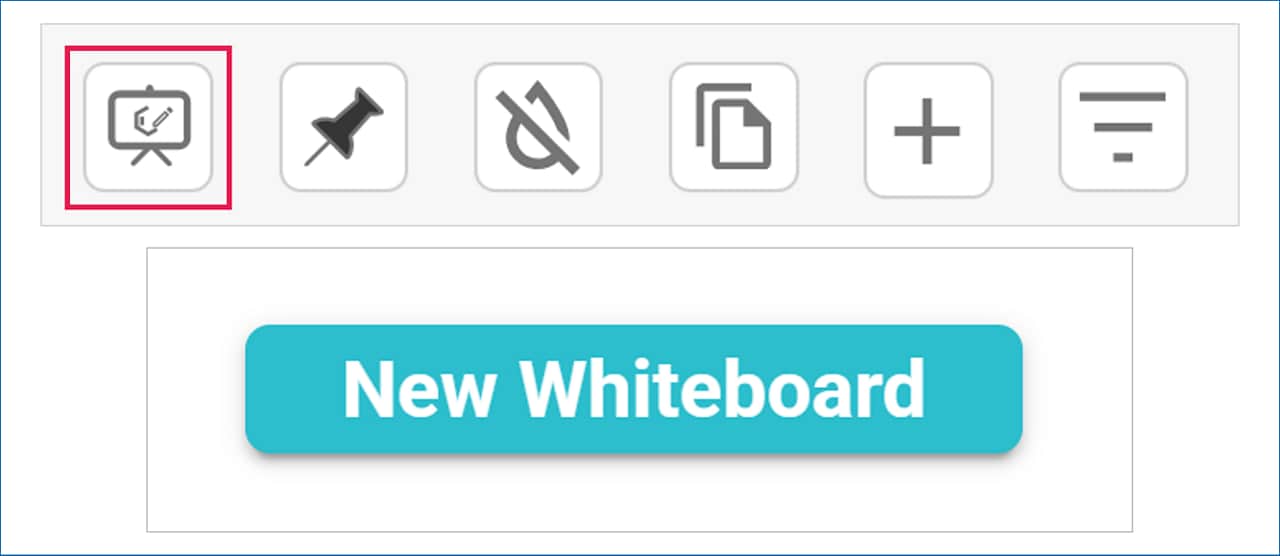
To add a molecule, open a Molecule Card in any type of analysis. At the top right of the card, click on the Whiteboard icon.
Select Your Whiteboard
When the Whiteboard selection popup appears, you can choose an existing Whiteboard or create a new one.
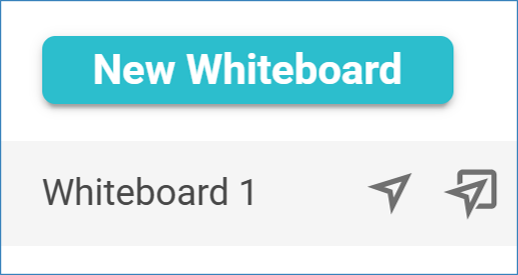
To add the pathway, reaction or molecule to an existing Whiteboard, you can either:
- Click the arrow icon to send the element to the Whiteboard while continuing to work in your analysis results.
- Click the arrow and frame icon to send the element to the Whiteboard and open it immediately.
If you add the element to a new Whiteboard, it will open automatically.
Note: You can also add pathways from Diversity Library Analyses. To do this, click on a molecule tile to open the Expanded Path View for the pathway, then follow the same steps as above to send the pathway to a Whiteboard.
