.png)

Learning Center


This feature is only available in SYNTHIA™ Entreprise edtion
Share Whiteboards
You can share a Whiteboard with your teammates by clicking the ‘Share Whiteboard’ icon. Start typing an email address in the text box and select the desired name from the suggested list. You may continue adding names as needed. Once you have added all recipients, click ‘Share’ to complete the process.
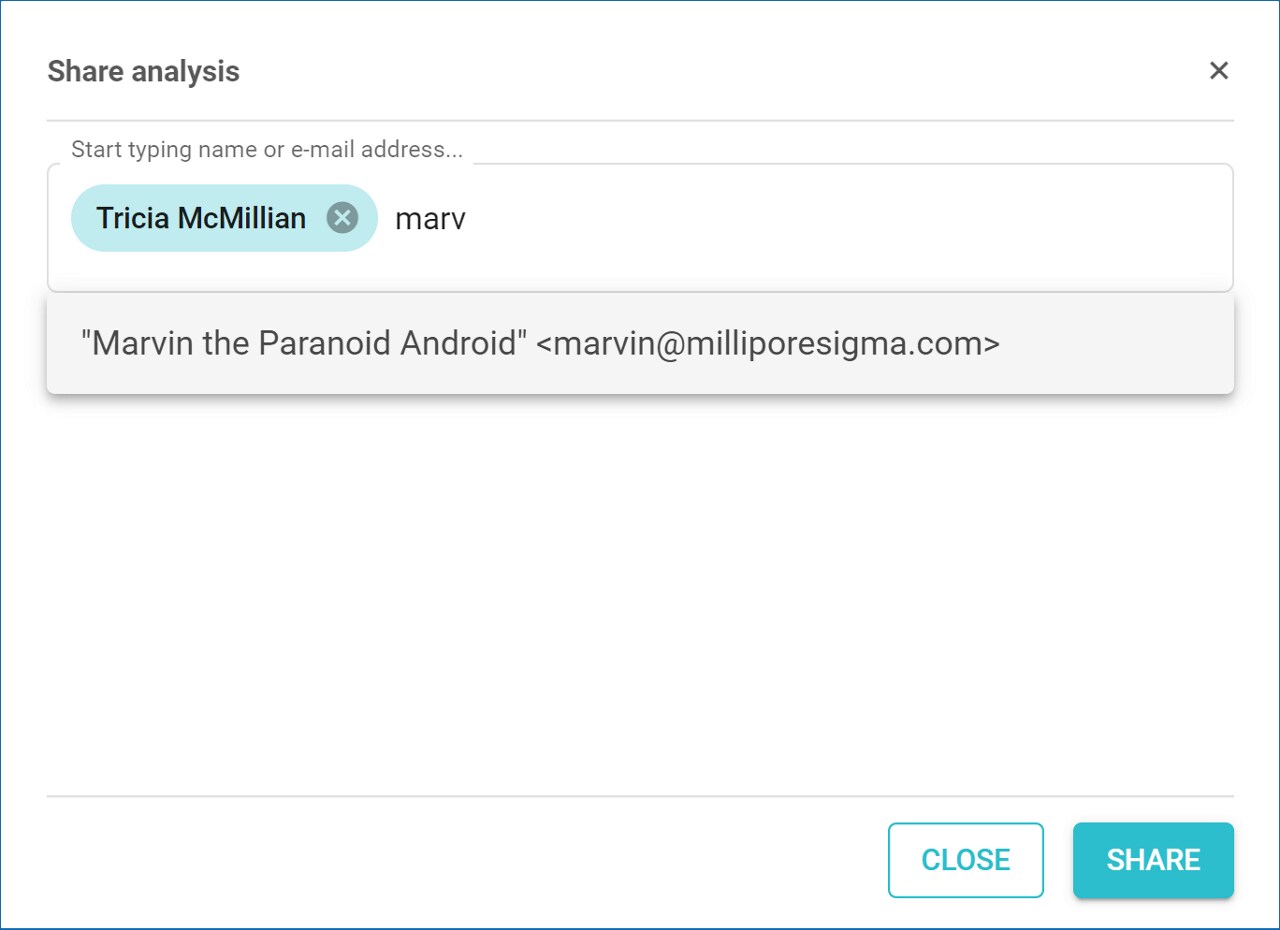
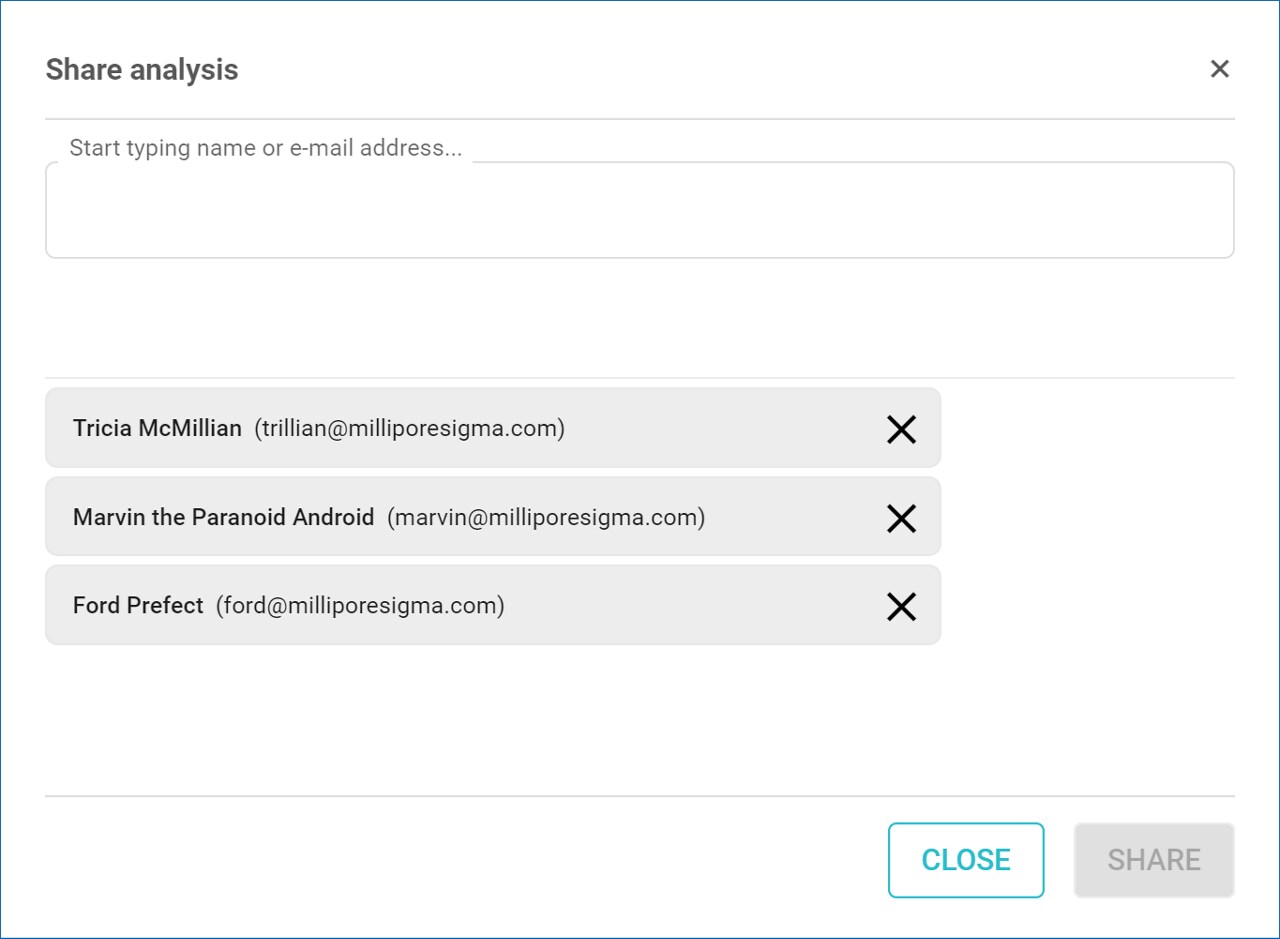
Once shared, the Whiteboard will be accessible to the selected teammates. A list of all current recipients is displayed below the text box. To stop sharing the Whiteboard with a recipient, click the ‘X’ next to their name. Their name will be removed from the list, and they will no longer have access to the Whiteboard. Close the sharing window by clicking the ‘X’ at the top right.
To view the Whiteboards you have shared, select ‘Shared by Me’ in the Filter panel. The number of people the Whiteboard has been shared with is displayed next to the icon on the Whiteboard tile.
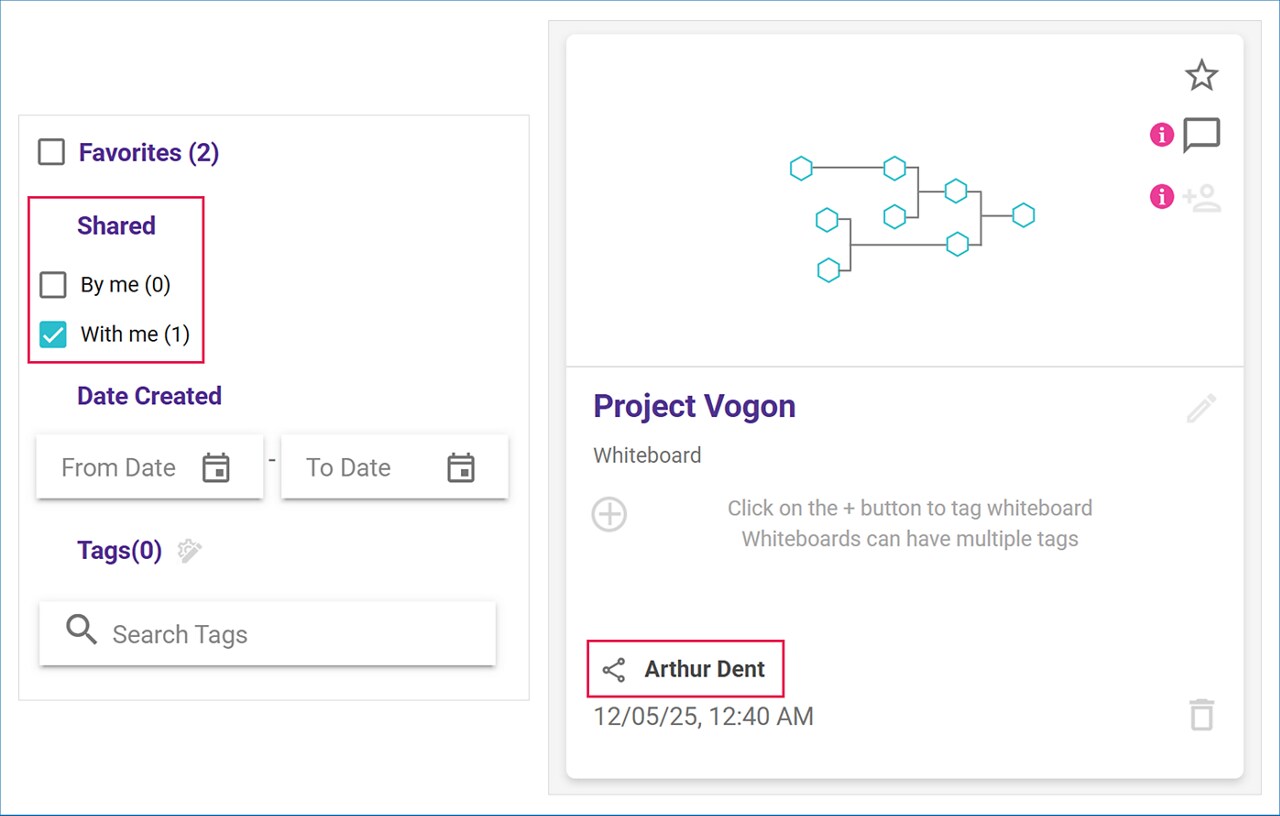
Recipients can access Whiteboards shared with them by selecting ‘Shared with Me’ in the Filter panel. The name of the Whiteboard owner is displayed in the bottom right corner of the Whiteboard tile. Recipients cannot reshare or rename shared Whiteboards. However, they can view comments added to the Whiteboard and contribute their own comments.
Recipients can actively contribute to a shared Whiteboard by adding and moving elements, text, and images, just as they would with their own Whiteboards.
