.png)

Learning Center


Filter by Structure
You can filter structures to exclude unwanted molecules or functional groups, or to concentrate on a specific common intermediate. Structures or substructures can be drawn in a molecule editor, or you can add an exact molecule directly from the results.
Using the molecule editor
- Open the ‘Filter’ tab on the left panel,
- Click on the ‘Molecule and Reaction Filters’ icon,
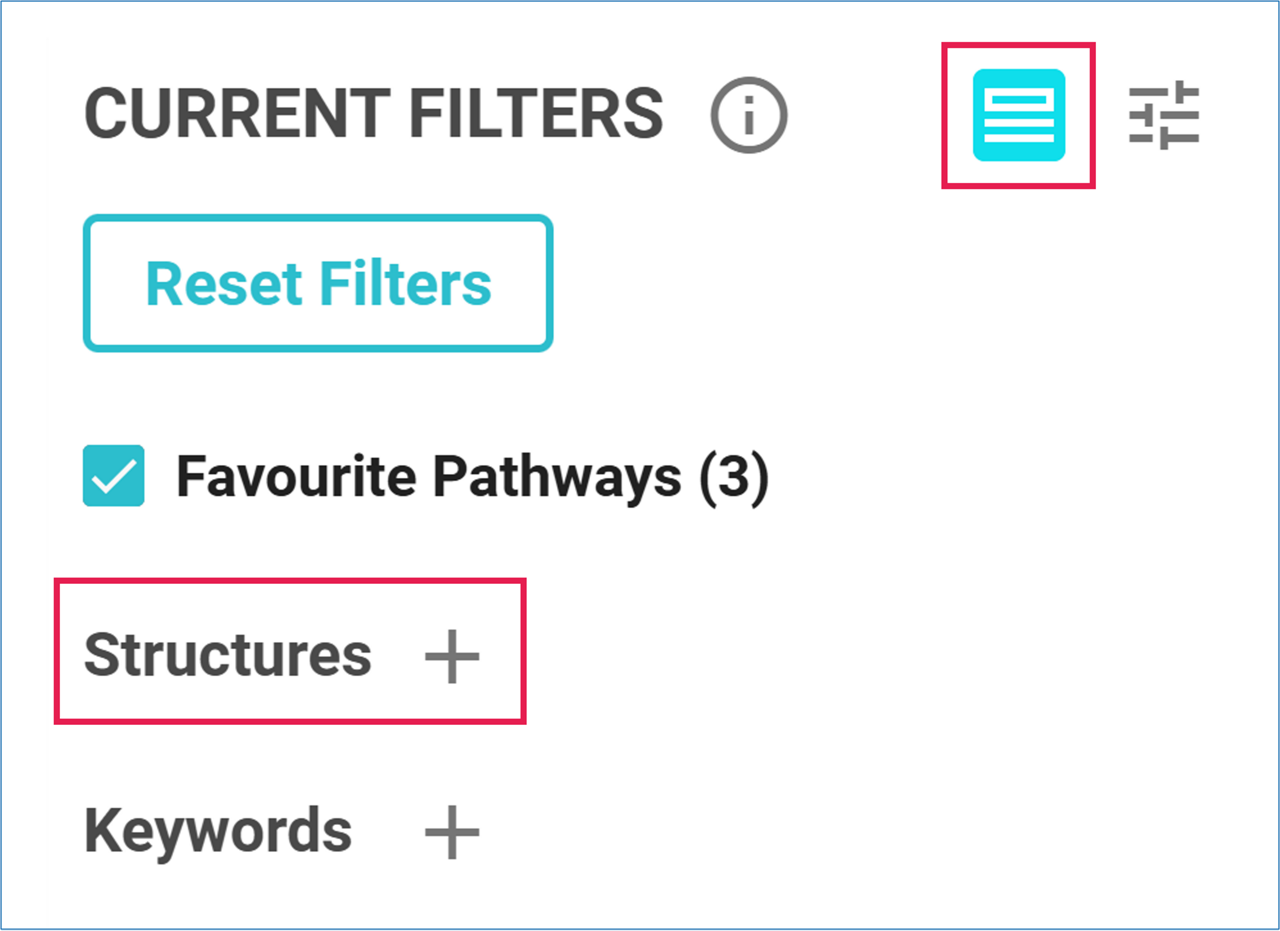
- Click on the ‘+’ sign next to Structures to open the molecule editor,
- Draw the structure or substructure in the molecule editor,
- Select ‘As drawn’ to filter the exact structure, or ‘As substructure’ to filter all structures matching the substructure,
- Alternatively, select ‘Similar’, and choose a number to restrict the results to similar compounds,
- In the drop-down menu, select ‘Exclude’ to remove the structure from the results, or ‘Limit to’ to display only results containing it,
- Click ‘Apply Filter’.

- The results will be filtered accordingly.
The filtered structures are displayed in the left panel under the Filter tab. Hover over the structure thumbnail to view a larger image.
To modify a filtered structure, click on the structure thumbnail to open the molecule editor. To remove a filtered structure, click on the 'X' that appears when you hover over the structure thumbnail.

From a Molecule Card
You can also directly filter an exact structure from the result graph.
- Open the Molecule Card for the corresponding molecule in either Path or Graph view,
- At the bottom of the middle section, click on ‘Add filter’ and select ‘Exclude’ or ‘Limit to’ form the drop-down menu,
- Click on the ‘+’ sign,
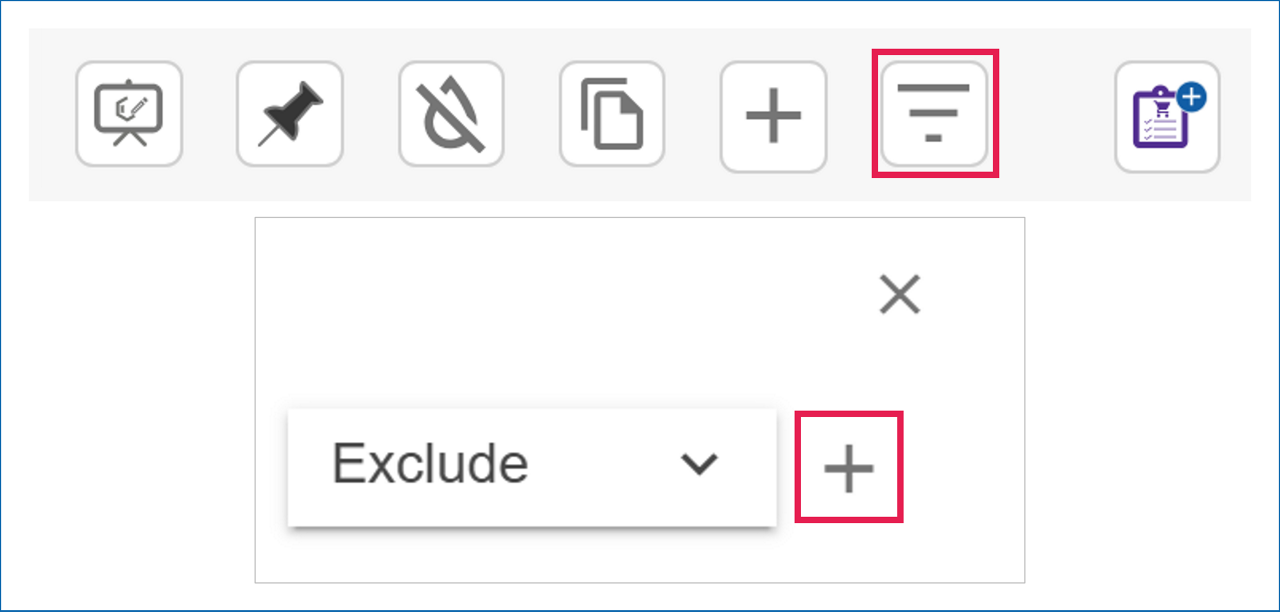
- The results will be filtered accordingly.
The filtered structures are displayed in the left panel under the Filter tab. Hover over the structure thumbnail to view a larger image.
To modify a filtered structure, click on the structure thumbnail to open the molecule editor. To remove a filtered structure, click on the 'X' that appears when you hover over the structure thumbnail.