.png)

Learning Center


Would you like to…
… learn more about how to use the molecule editor in SYNTHIA™?
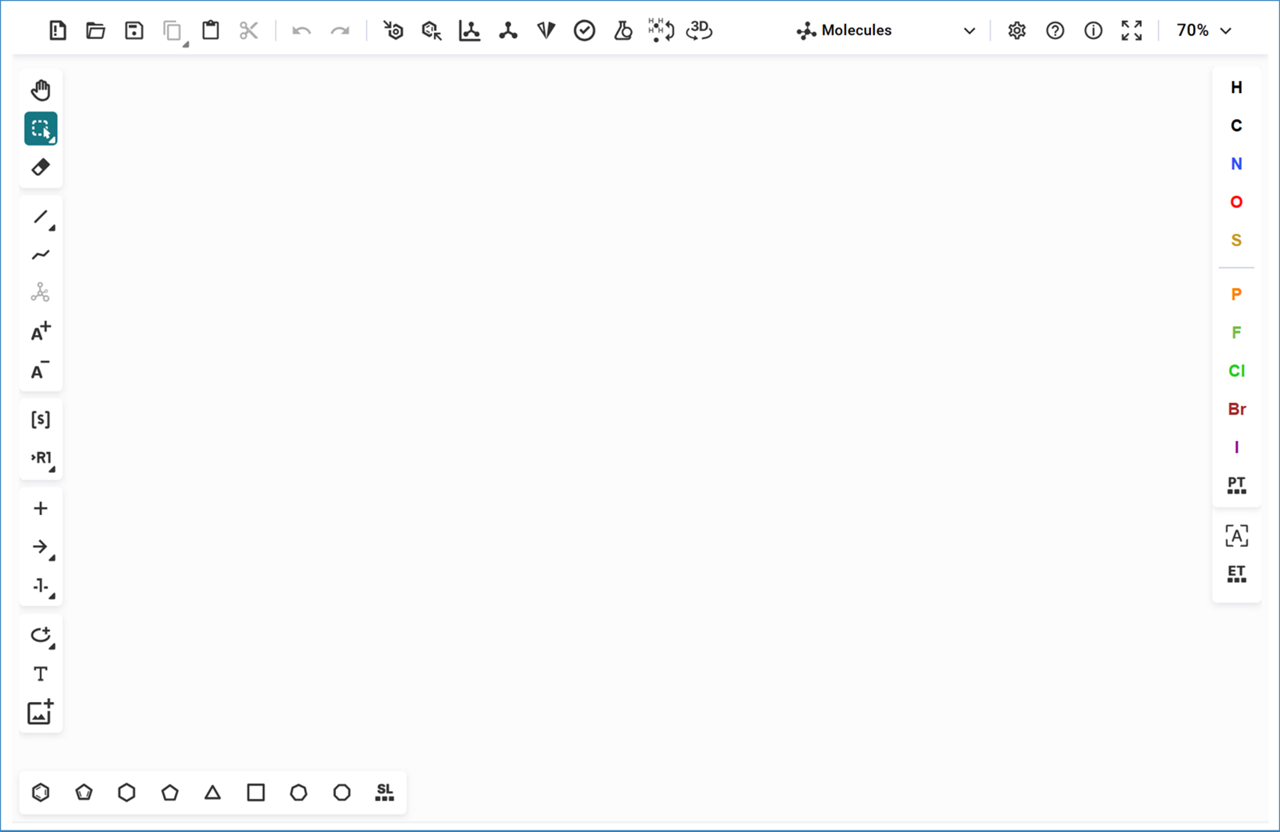
Our Molecule Editor, Ketcher, allows you to quickly draw structures using bond and atom tools.
Key Features
- Bond and Atom Tools: Select bond types and atoms from the corresponding icons in the editor.
- Template Bar: Access simple ring templates at the bottom of the editor.

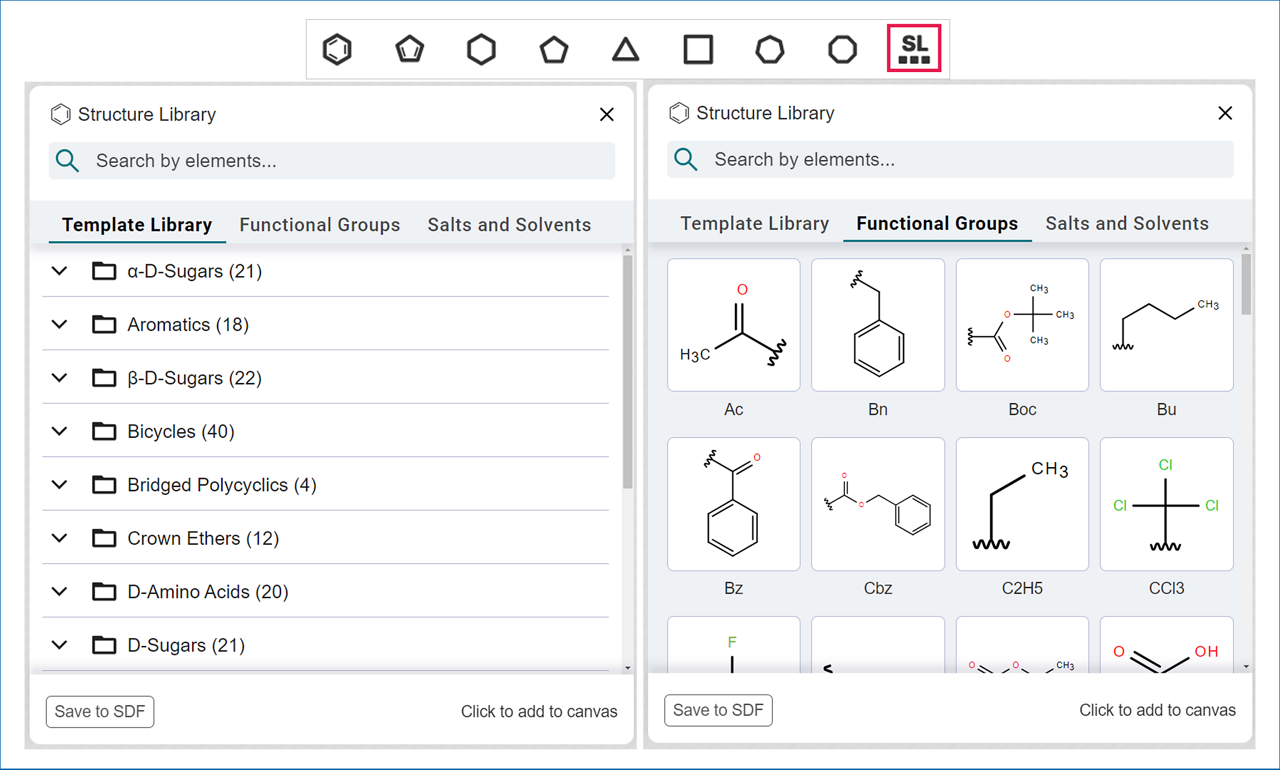
- Structure Library: Use the Structure Library icon on the right side of the bottom bar to access:
- Common functional groups
- Libraries of complex rings
- Natural product templates
Note: Always draw exact structures for analysis. SYNTHIA™ does not recognize query bonds or query atoms for target molecules.
Keyboard Shortcuts
Accelerate structure drawing with these shortcuts:
Keyboard Shortcut | Function |
|---|---|
1 | Toggle between Single/Up/Down/Wiggly bonds |
2 | Double bond |
3 | Triple bond |
4 | Aromatic bond |
esc | Selection tools |
t | Select ring templates from the template bar |
h | Hydrogen atom |
c | Carbon atom |
n | Nitrogen atom |
o | Oxygen atom |
f | Fluorine atom |
Shift+c | Chlorine atom |
b | Bromine atom |
i | Iodine atom |
p | Phosphorus atom |
s | Sulfur atom |
Shift+b | Boron atom |
Import Structures
You can paste structures drawn in other Molecule Editors directly into SYNTHIA™. The editor recognizes common structure formats, such as:
- SMILES
- MOL text
- InChi
How to import:
- Copy the molecule from another editor and paste it directly into SYNTHIA™’s drawing space.
- If you experience issues, copy the molecule as SMILES and paste it into the editor using Ctrl+v.
Atom Properties Menu
When the Selection Tool is active, double-click on any atom to open the Atom Properties Menu.

Functions:
- Change Element: Type the element abbreviation in the Label textbox to change the atom.
- Modify Isotopes: Enter the isotope number in the Isotope textbox.
- Example: Type 13 for a 13C isotope or 2 for deuterium with H as Label.
- Modify Charge: Type the charge number in the Charge textbox.
- Example: Type 1 for a positive charge or -1 for a negative charge.
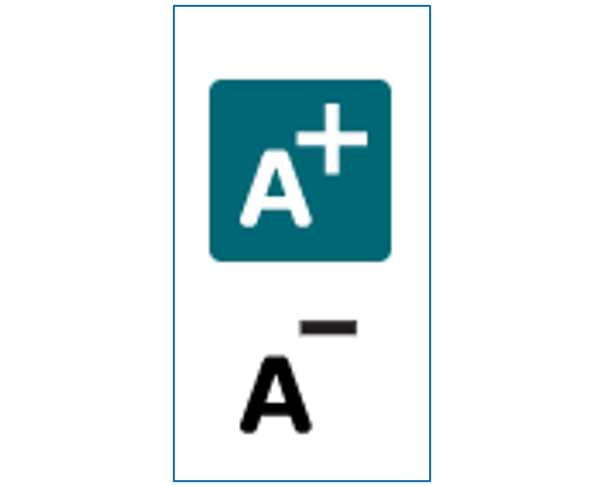
- Alternatively, use the Charge Tools in the left bar and click the atom to modify its charge.
Bond Properties Menu
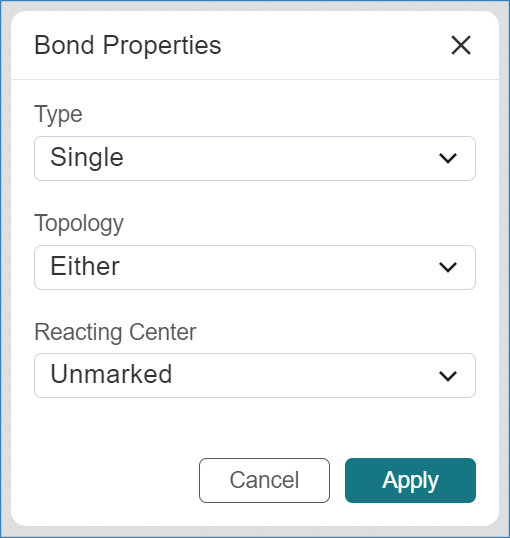
When the Selection Tool is active, double-click on any bond to open the Bond Properties Menu.
Functions:
- Avoid Pathways: Select Not Center in the Reacting Center dropdown to prevent SYNTHIA™ from proposing pathways forming the selected bond. The bond will be marked with an X.
- Favor Pathways: Select Center in the Reacting Center dropdown to prioritize pathways forming the selected bond. The bond will be marked with a #.
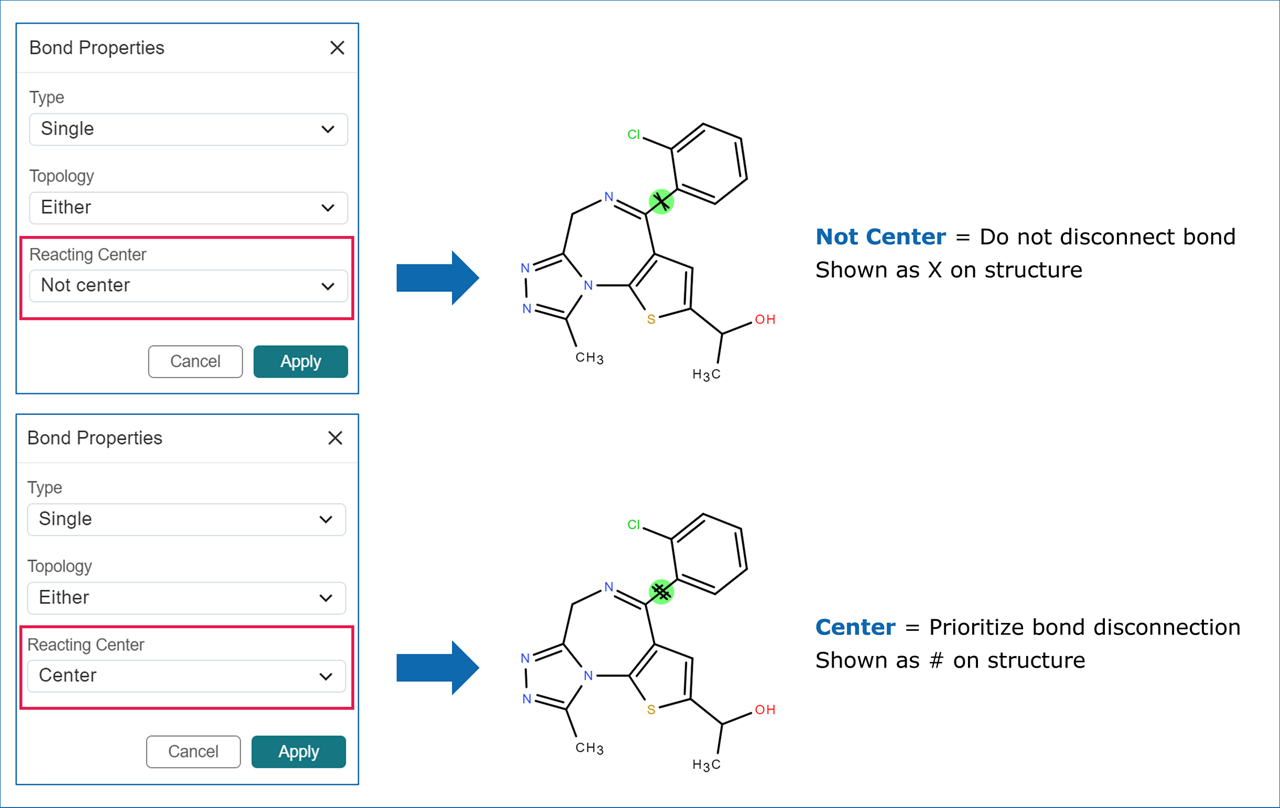
This feature is useful for building disconnection strategies in SYNTHIA™.
Text
To insert text into the molecule editor, click the T icon located in the left-side column. Next, click anywhere within the editor to open the text editor popup.
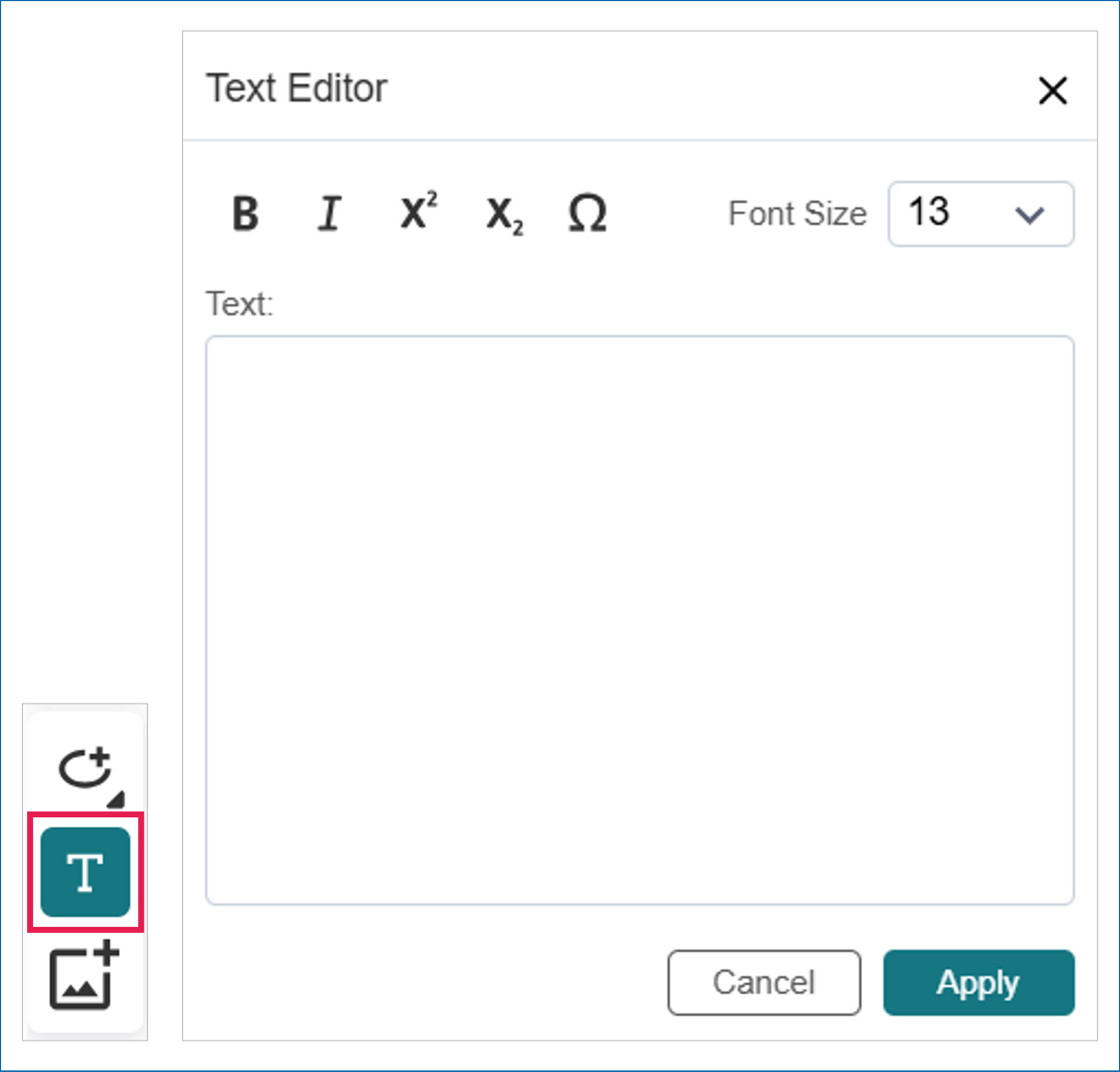
Type your text in the provided text box and use the formatting options at the top to customize its appearance. Once satisfied, click Apply to transfer the text to the molecule editor. You can then reposition the text using the Selection Tool. To make further edits, simply double-click on the text.
